
CodePen is a free online code editor and social community platform for front-end developers and designers. It lets you write HTML, CSS, and JavaScript directly in your browser and see the result update in real time — no setup, no local environment, and no file management required. With over 1.8 million developers using the platform, CodePen is the most widely used online sandbox for front-end prototyping, learning, and showcasing code.
This review covers what CodePen actually does, how its editor works, what the free and Pro plans include, where it falls short, and who it makes the most sense for in 2026. If you are also exploring AI-powered coding tools, our Code category covers a range of options across different development use cases.
Quick verdict CodePen is excellent for front-end prototyping, learning, and sharing small demos. It is not designed for full-stack projects, and its free tier is generous enough that most users never need to upgrade.
What Is CodePen?
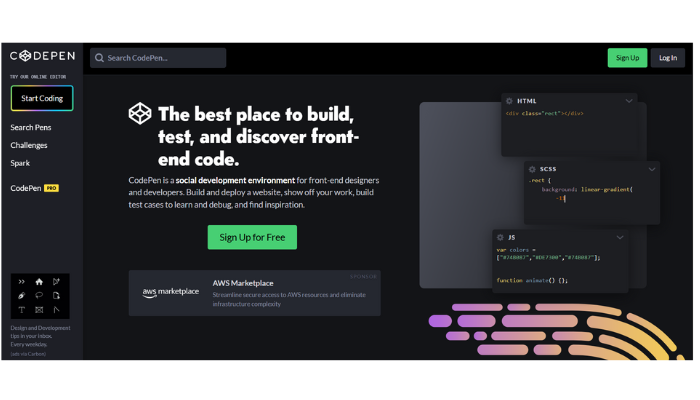
CodePen is an online development environment built specifically for front-end code. You open a browser, navigate to codepen.io, and you have an instant editor with three panels — HTML, CSS, and JavaScript — plus a live preview pane that updates as you type. No refresh cycle, no build step, no waiting.
Each project on CodePen is called a pen. Pens are shareable by default and can be embedded directly on external websites, portfolios, and documentation. The platform also works as a social community: you can follow other developers, fork their pens, and browse trending work to see how experienced developers solve real front-end problems.
CodePen was founded in 2012 and is maintained by a small independent team. It requires no local code editor, no Node.js installation, and no build configuration. That simplicity is its greatest strength — and the clear boundary of what it is designed to do.
How CodePen Works
The Three-Pane Editor
The editor gives you three input panels and one live preview pane side by side. Write HTML in the first panel, CSS in the second, JavaScript in the third. The preview updates automatically with every keystroke. This immediate feedback loop is particularly valuable when fine-tuning CSS animations, debugging layout behaviour, or building interactive JavaScript components — you see the effect of each change the moment you make it, which cuts iteration time significantly compared to working locally with a save-refresh cycle.
Preprocessor Support
CodePen supports the preprocessors that front-end developers use in real production projects: Sass and Less for CSS, Babel for modern JavaScript, TypeScript, and CoffeeScript. You write modern syntax and CodePen compiles it for you — the live preview always reflects exactly what the browser receives, which means you can practise production-grade syntax without any local toolchain.
Account Tiers
Free users can create unlimited public pens, access all preprocessors, fork other developers’ work, and share via URL or embed code. Pro subscribers gain private pens, asset hosting, real-time collaborative editing, and reusable templates. For most learners and front-end developers doing day-to-day prototyping, the free tier covers everything.
Key Features in Practice
Embeddable Pens
Every pen comes with an embed code. Paste it into a blog post, portfolio page, or technical documentation and visitors see a live, interactive version of the code — not a screenshot. This is used extensively in front-end tutorials: instead of showing a static image of the result, the tutorial embeds the actual pen so readers can open the code, edit it, and see what happens. For portfolio work, a live embedded demo carries far more weight with a hiring manager than a description of the same thing.
Collab Mode
CodePen Pro includes real-time collaborative editing. Two or more developers can edit the same pen simultaneously, each seeing the other’s changes as they happen. It is well-suited to remote pair programming sessions, code reviews with a junior developer, and live tutoring. The collaboration is limited to the front-end scope of a single pen, but for that use case it works cleanly.
Community and Discovery
The Explore section surfaces trending, popular, and recently published pens from across the community. This is genuinely one of the most useful parts of CodePen for learning: searching for a CSS effect or JavaScript technique you want to understand, finding a polished example by an experienced developer, forking it, and working through the code to understand how it was built. The community ranges from students posting their first experiments to professional developers building elaborate CSS art.
CodePen Pricing: Free vs Pro
The free tier is usable indefinitely and covers most practical needs. Pro is worth considering specifically if you need private pens for client work, need to host custom images and fonts within pens, or want Collab Mode for team use.
|
Feature |
Free |
Pro (from ~$8/month) |
|---|---|---|
|
Public pens |
Unlimited |
Unlimited |
|
Private pens |
Not available |
Included |
|
Asset hosting (images, fonts) |
Not available |
Included (10GB+) |
|
Collab Mode |
Not available |
Included |
|
Preprocessors (Sass, Babel) |
Included |
Included |
|
Reusable templates |
Not available |
Included |
|
Custom pen profiles |
Standard |
Customizable |
Pricing verified at codepen.io as of October 2026. Annual billing reduces the effective monthly cost.
Where CodePen Falls Short
CodePen is designed for front-end code only. That focus is not a flaw — it is what makes the tool fast and simple — but it does set a clear boundary for what it can support. These are the honest limitations worth knowing before committing to it.
▶ No back-end support. CodePen does not run Node.js, Python, PHP, or any server-side code. If your project requires a database, API routes, authentication, or server logic, you need a different environment.
▶ No version control. There is no Git integration. Forking a pen creates a copy, but there is no commit history, branching, pull requests, or merge workflow.
▶ Weak autocomplete. The editor does not offer IntelliSense-level suggestions. Developers accustomed to VS Code’s intelligent completions and error highlighting will find the CodePen editor noticeably limited.
▶ Single-file environment. CodePen is built around one HTML file, one CSS file, and one JavaScript file. Multi-component projects with separate files, imports, or a build pipeline do not fit this model.
▶ Asset hosting requires Pro. Free users cannot upload and host their own images, fonts, or audio files within a pen. They must reference externally hosted assets via URL.
How to Get Started with CodePen
Creating Your First Pen
Go to codepen.io and click Create New Pen. No account is needed to experiment, though you need one to save your work. The editor opens immediately with three input panels and a live preview. Type or paste any HTML, CSS, or JavaScript and the preview updates in real time.
Saving and Publishing
Click Save and your pen is assigned a unique URL automatically. Free pens are public by default. Add a title, short description, and relevant tags to make the pen discoverable in the Explore section and on your public profile.
Sharing and Embedding
The Share button on any pen provides three options: a direct URL to share, an iframe embed code for placing the pen on an external page, and a screenshot export. The embedded pen is fully interactive — visitors to your blog or portfolio can open the code panel, edit it, and see results live.
Forking to Learn
The Fork button on any public pen creates your own editable copy without affecting the original author’s work. Forking is one of the most practical learning techniques on CodePen: search for an effect you want to understand, fork it, and systematically modify pieces of the code to see what each part does.
CodePen vs Alternatives
CodePen is the most widely used front-end sandbox but it is not the only option. The right choice depends on what you are building. For AI coding tools that work alongside browser-based environments, the Code category on AI Tools Guidance lists options suited to different development workflows.
|
Tool |
Best For |
Back-End |
Free Tier |
|---|---|---|---|
|
CodePen |
Front-end demos, community sharing, learning |
No |
Generous — unlimited public pens |
|
StackBlitz |
Full-stack apps, React and Vue framework projects |
Yes (Node.js) |
Available |
|
CodeSandbox |
Component development, larger multi-file projects |
Yes |
Available |
|
JSFiddle |
Quick JavaScript debugging and small snippets |
No |
Completely free |
The summary: CodePen is the right choice when your work is front-end focused and the community, embed, and sharing features matter. StackBlitz or CodeSandbox are the right choice when you need back-end support or a multi-file project structure.
Who Should Use CodePen
▶ Front-end developers who need a fast sandbox for testing CSS techniques, UI components, or JavaScript interactions without the overhead of setting up a local project for every small experiment.
▶ Students and beginners learning HTML, CSS, and JavaScript. The instant feedback loop between writing code and seeing results is one of the most effective learning environments available online.
▶ Freelancers and designers building a portfolio. Embedding live code demos on a portfolio site gives potential clients and employers something to interact with, not just read about.
▶ Technical writers and tutorial authors who embed working examples in articles, blog posts, and documentation so readers can experiment with the code directly.
▶ Developers debugging front-end issues who need to create a minimal reproduction case to share with colleagues, post on Stack Overflow, or submit as a bug report.
CodePen is less suited for back-end developers, full-stack application builders, or anyone working on projects that require file systems, build tools, or server logic. For low-code application building that goes beyond front-end HTML and CSS, AppyPie is worth exploring — it offers a visual builder that covers a broader range of application types.
Final Assessment
CodePen has held its position as the default front-end sandbox since 2012, and that has not changed in 2026. The live preview, preprocessor support, and embed features remain genuinely useful. The community is large enough that you can find a working example of almost any CSS technique or JavaScript pattern in the Explore section, which makes it one of the better passive learning resources available to front-end developers.
Its limitations are real but narrow and deliberate. CodePen does not try to be a full IDE. If your work is primarily HTML, CSS, and JavaScript, and you value a fast, shareable, community-backed environment, CodePen is a reliable and free tool that continues to earn its place in the front-end developer’s standard kit.
Frequently Asked Questions
Q1 Is CodePen free to use?
Yes. CodePen has a free tier with unlimited public pens, full preprocessor support (Sass, Less, Babel), and complete community access. A Pro plan is available from approximately $8 per month and adds private pens, asset hosting (10GB+), real-time Collab Mode, and reusable templates. The free tier is generous enough that most learners and front-end developers never need to upgrade.
Q2 What is CodePen used for?
CodePen is used for writing, testing, and sharing HTML, CSS, and JavaScript code directly in the browser without any local setup. The most common use cases are prototyping UI components, experimenting with CSS animations and layouts, building live portfolio demos, embedding interactive code examples in tutorials and documentation, and creating minimal reproduction cases when debugging front-end issues.
Q3 Can beginners use CodePen?
Yes, and it is one of the best starting points for learning front-end development. No software installation, local server, or build configuration is required. You open a browser, type code into the editor, and see the rendered result update immediately. Many online courses and tutorials embed CodePen pens directly in their lessons so students can modify code in real time as they learn.
Q4 What is the difference between CodePen Free and CodePen Pro?
Free users can create unlimited public pens, use all preprocessors, fork other developers’ work, and share projects via URL or embed code. The key Pro-only features are private pens, asset hosting, Collab Mode, and reusable project templates. If your work is public and asset-light, the free tier covers everything you need.
Q5 Does CodePen support React or Vue?
CodePen supports external JavaScript libraries including React, Vue, and Angular, which you add through the pen’s Settings panel. However, it is not designed for full application development requiring routing, state management, or multi-component file structures. For building complete React or Vue applications in the browser, StackBlitz or CodeSandbox are better suited.
Q6 Is CodePen good for building a developer portfolio?
Yes. Embedding live, interactive code demos in a portfolio is a far more compelling demonstration of front-end skills than static screenshots. You can link directly to your public CodePen profile, embed individual pens on a personal website using the generated iframe code, or share specific pen URLs in job applications and on LinkedIn.